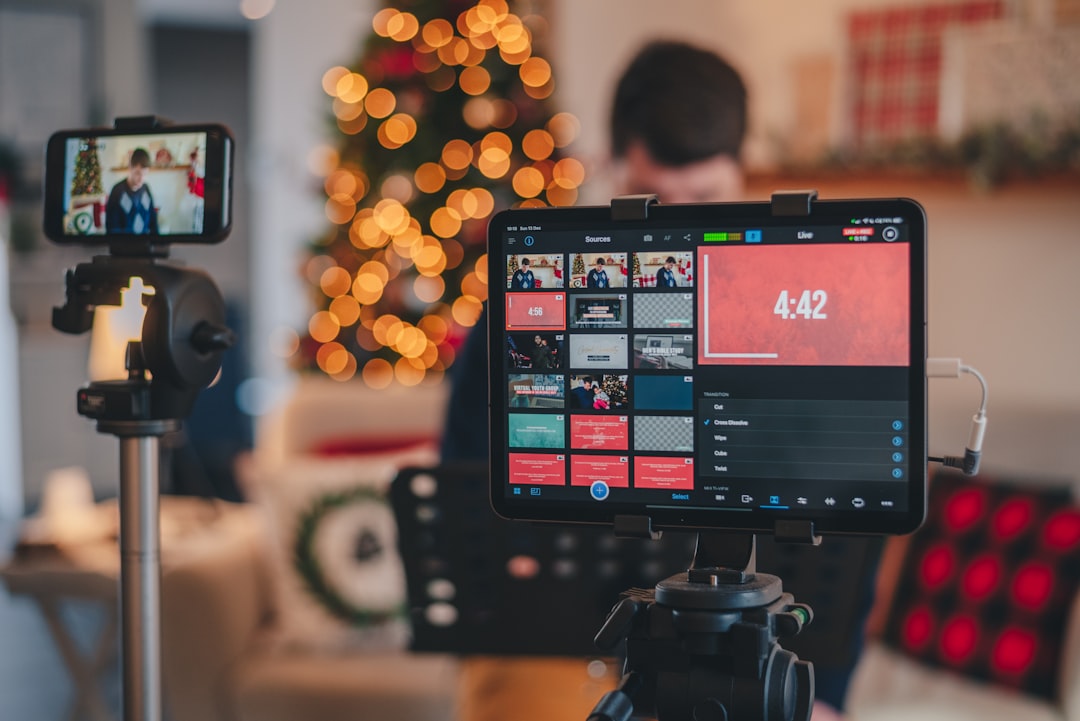
When Discord screen sharing has no audio, the cause is usually a mismatch between what you share, where the sound is routed, and which permissions Discord or your operating system allows. This checklist helps you isolate the problem by scenario, restore shared sound, and build a repeatable pre-session test for watch parties, game streams, demonstrations, and community support calls.
Overview
Discord screen sharing can involve several separate audio paths. You may be sharing a specific application, an entire display, a browser tab, or a game captured through Discord’s game detection. The viewer’s sound depends on the selected sharing method, the application’s audio output, Discord’s permissions, and the device selected for playback.
Start by identifying the exact symptom:
- No sound at all: Viewers see the shared video, but hear nothing.
- Only some applications are silent: One game, browser, or media player fails while another works.
- Sound is intermittent or distorted: Audio appears after restarting, changes when a headset is connected, or cuts out under load.
- You hear the sound but viewers do not: The source is playing locally, but it is not included in the shared audio path.
- Mobile sharing has no sound: The device or mobile sharing mode may not support the same audio scenarios as desktop sharing.
Test with a short, non-sensitive clip before inviting an audience. Ask a moderator or trusted participant to confirm what they hear rather than relying only on your own preview. If the problem includes microphone feedback, echo, or delayed desktop audio, use the stream audio troubleshooting guide alongside this checklist.
Checklist by scenario
Application sharing
Use application sharing when you want to share one program, game, or browser window. It is usually the clearest first test because it limits the shared source to a known application.
- Leave the target application open before starting the share.
- Open Discord’s screen-share picker and select the application window rather than an unrelated display or preview.
- Confirm that the audio-sharing option is enabled if Discord presents one. Interface labels and available controls can vary by platform and version.
- Start the share, then play a short clip or trigger a predictable in-app sound.
- Ask a viewer whether the sound is present and whether it is clear.
If application sharing works but full-display sharing does not, keep using application sharing for the session when practical. This narrows the audio path and avoids unrelated system sounds.
Full-screen or display sharing
Sharing an entire display is useful for presentations, software demonstrations, and workflows that move between several windows. It can be less predictable when the sound originates from a different display, output device, browser, or protected media player.
- Confirm that you selected the display containing the content you intend to play.
- Check whether Discord offers a separate audio-sharing control for the display share.
- Keep the source application and Discord open on the same operating-system session.
- Test with a simple local video or system sound before testing a complex workflow.
- If the display share remains silent, switch temporarily to application sharing to determine whether the issue is with the source or the display mode.
Games and game capture
For a game with no shared audio, first determine whether Discord is sharing the game window or another source. Close duplicate launchers, overlays, or alternate game windows that may confuse the selection list, then reopen the game and Discord if necessary.
Check the game’s own output device and volume controls. A game may be sending sound to speakers while your operating system sends other applications to a headset. If the game uses exclusive full-screen behavior, test borderless or windowed mode as a diagnostic step. Do not change several graphics and audio settings at once; make one change, retest, and record what worked.
If the game is unstable when shared, reduce the number of overlays and background capture tools running at the same time. High system load can cause missing or interrupted stream audio even when the sharing selection is correct. For broader performance symptoms, see the live stream quality troubleshooting decision tree.
Browser content
When sharing a browser window or tab, confirm that the media is actually playing in the selected window. A muted tab, an in-page volume control, or a browser permission prompt can make the source appear active while producing no sound.
- Check the tab’s mute indicator and the player’s volume.
- Try a different page or local test clip to separate browser-specific behavior from Discord behavior.
- Close duplicate browser windows and share the one containing the active media.
- If browser audio is restricted or inconsistent, use application sharing or a supported desktop workflow instead.
Mobile sharing
Mobile screen sharing does not always provide the same application-audio controls as desktop sharing. Device model, operating-system version, app version, and the type of media can affect what viewers receive. Before a mobile session, test the exact device and app combination with another participant. If sound is essential, use a desktop setup that provides explicit audio-sharing controls or send the media through a separate, approved channel.
What to double-check
Discord and operating-system permissions
Review Discord’s voice, video, and screen-sharing permissions, then check the operating system’s privacy controls for screen recording, microphone access, and related capture permissions. The names and locations of these controls differ between operating systems and may change after updates. Restart Discord after granting a permission if the change is not recognized immediately.
Output routing and volume mixers
Open the operating system’s volume mixer and verify that the source application is not muted or assigned to an unexpected output. Then check Discord’s selected output device. A common pattern is that the host hears the game through a headset while the application is routed to speakers, a monitor, a virtual cable, or a disconnected device.
For a clean test, temporarily select one known working output device for both the source application and Discord. Avoid changing the output device while the share is active. Stop the share, change the device, and start a new test.
Headsets, interfaces, and virtual devices
USB headsets, Bluetooth devices, audio interfaces, virtual cables, and monitor outputs can introduce additional routing points. Disconnect unused audio devices during diagnosis. If sound disappears when a headset is connected, confirm that the application did not switch outputs automatically and that the selected device remains available.
App, Discord, and system state
Update Discord and the operating system through your normal maintenance process, but avoid updating immediately before a critical event without testing. If the issue began after an update, record the app version, operating system, selected share mode, and affected application. Restart the source application and Discord before escalating. This clears temporary capture states without changing your whole setup.
Common mistakes
- Testing only by listening locally: Hearing the source yourself does not prove that viewers receive it. Always obtain a listener check.
- Sharing the wrong window: A launcher, frozen preview, or duplicate browser window may be selected instead of the active source.
- Ignoring per-application routing: The system volume can be audible while the target application is muted or assigned elsewhere.
- Changing multiple settings at once: This makes it difficult to identify the actual fix and can create new routing conflicts.
- Assuming a microphone test proves desktop audio works: Microphone input and shared application audio are separate paths.
- Using a last-minute hardware change: Connecting a new headset, capture device, or virtual audio tool can alter default outputs.
- Relying on an untested mobile workflow: Mobile screen sharing may not match desktop behavior for every application or media type.
For recurring community events, add a two-minute audio check to the runbook: start the intended share, play a known test clip, have a moderator confirm sound, and document the working output device and share mode.
When to revisit
Revisit this checklist before seasonal watch parties, product demonstrations, training sessions, and other recurring events. Repeat the test whenever Discord, the operating system, the source application, browser, headset, audio interface, or display setup changes. It is also worth checking after reports of intermittent sound, distorted playback, missing game audio, or a switch from desktop to mobile.
Keep a short record of the working configuration:
- Device and operating-system version
- Discord version or update date
- Application, browser, or game being shared
- Application share or display share
- Selected output device
- Whether a viewer confirmed the audio
Before going live, perform one private test with the exact content and hardware you plan to use. If the problem persists across more than one application and output device, isolate Discord from the rest of the setup by testing another screen-sharing workflow or a separate recording. That evidence will make further support more efficient and help distinguish a Discord capture issue from an operating-system, application, or hardware routing problem.