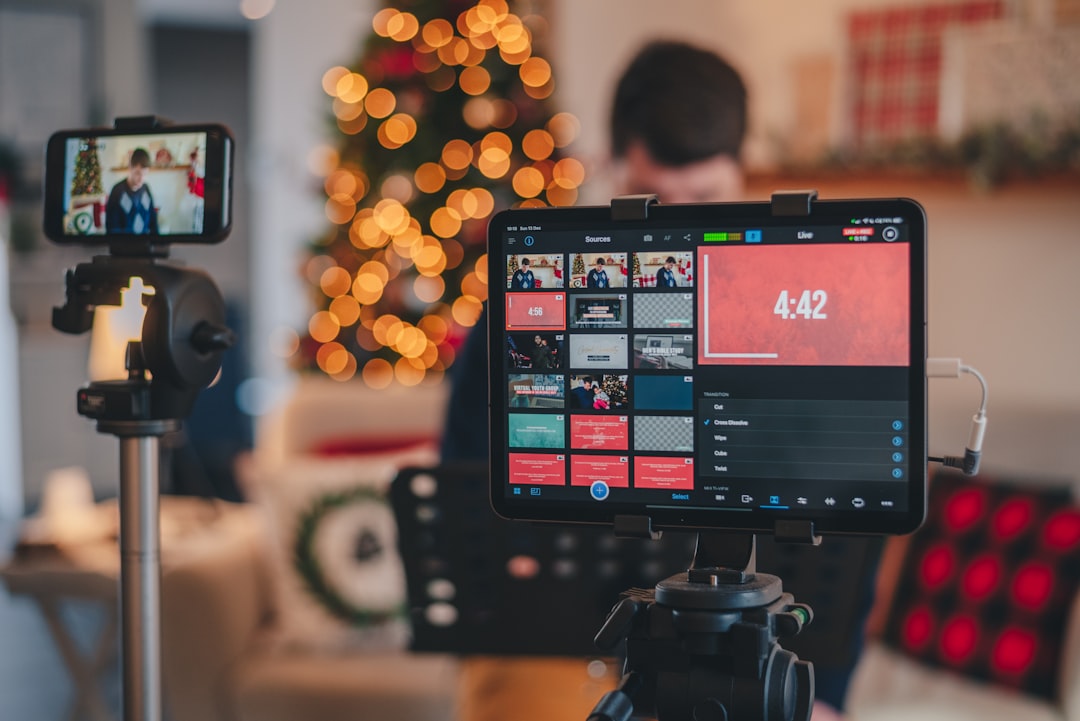
A live event backup plan turns a stressful outage into a sequence of known actions. This reusable runbook covers local recording, backup internet, alternate hosts, secondary meeting links, emergency announcements, role assignments, and post-event recovery so your team can protect the audience experience when a broadcast or meeting does not go as planned.
Overview
A live event contingency plan should answer five questions before the event begins: what can fail, how will the team detect it, who makes the decision to switch, which backup path is available, and how will attendees be informed? The goal is not to create a duplicate of every production system. It is to remove single points of failure from the parts of the event that matter most.
Start by defining the event’s minimum acceptable service. For some broadcasts, that may be a clean local recording that can be published later. For a customer webinar, it may be a working audio channel and a backup meeting room. For a community stream, it may be a short emergency message followed by a return to the primary platform. This decision determines how much redundancy is appropriate.
Document the primary setup and the fallback for each essential component:
- Recording: save a local recording rather than relying only on a platform’s cloud recording or replay.
- Connectivity: identify a separate internet connection, such as a tested mobile hotspot or secondary network.
- Platform: prepare an alternate meeting or streaming destination when the primary service is unavailable.
- People: assign a backup host, moderator, technical operator, and communications owner.
- Audience communication: prepare a short status message and a place to publish it.
For production-specific diagnosis, use the live stream quality troubleshooting decision tree. It helps the operator distinguish a local camera or encoder problem from a network, platform, or audience playback issue.
Checklist by scenario
Before the event: build the failover plan
- Write down the primary event link, streaming destination, broadcast software profile, host accounts, and administrator contacts.
- Confirm that at least two people can access the event platform, stream key or production workspace, recording files, and audience announcement channels. Use approved access-sharing practices rather than passing credentials through chat.
- Choose a backup host who can continue without the main presenter. Give that person the agenda, speaker notes, slides, contact list, and instructions for moving to the alternate room or platform.
- Prepare a backup meeting link or alternate stream destination. Keep it unpublished until needed, but make sure the owner can open it and that the intended audience can join.
- Test local recording from the actual production computer. Check where the file is saved, whether there is enough storage, and whether the recording includes the expected microphone, presentation, camera, and system audio.
- Test the alternate internet connection from the event location. A connection is not a reliable backup until the team has tried the actual host, camera, microphone, and streaming workflow on it.
- Create short messages for three situations: a brief delay, a move to a backup link, and a cancellation or recording-based follow-up.
- Assign decision authority. The technical lead should not have to wait for several approvals while the audience sees a frozen screen or empty room.
If the primary internet connection fails
- The operator confirms whether the issue affects only the production computer or the wider venue. Avoid changing several settings at once.
- The technical lead announces the status internally and starts the agreed switching window.
- Move the host or encoder to the tested secondary connection. Disable unnecessary devices and background traffic to preserve capacity.
- If the connection remains unstable, stop trying to maintain a poor live feed. Publish the prepared status message and move to the backup meeting or recording plan.
- Continue recording locally whenever possible, even if the public stream is interrupted.
After reconnecting, verify microphone input, camera framing, presentation sharing, and stream health before resuming. If the encoder is overloaded or frames are dropping, the OBS encoder and dropped-frames guide provides a separate troubleshooting path.
If the streaming or meeting platform fails
- Check the platform from a second device or network to separate an account or local browser problem from a broader service issue.
- Keep the presenter informed through the internal team channel, not through the public event chat alone.
- Activate the backup link only after confirming that it opens correctly and that the audience message contains the complete URL.
- Have the moderator repeat the move instructions in the original channel, email list, community space, or event page.
- Preserve the local recording and event notes even if the backup session succeeds.
For events that combine OBS, Zoom, Teams, Discord, or YouTube Live, document which tool is the source and which tool is the destination. The streaming and video meeting integration playbook can help teams map those handoffs before an incident.
If the host or presenter cannot continue
- Transfer speaking duties to the backup host using the prepared agenda and transition script.
- Ask the moderator to manage questions, remove distractions, and explain any short pause without speculating about the cause.
- Switch to a prepared segment that requires less live interaction, such as a presentation, recorded demonstration, or written Q&A.
- Keep the audience informed about the next checkpoint: for example, “We are checking the connection and will provide an update in five minutes.” Use a time you can realistically meet.
If the event must stop
End clearly rather than leaving an inactive room or silent stream online. State what happened at a high level, explain whether the recording will be shared, and provide the next update channel. Do not promise a new start time until the team has confirmed the platform, host, and production path.
What to double-check
Most failover plans look complete until someone tries to use them under pressure. Run a short rehearsal using the same people and equipment planned for the event. Test each handoff, not just each component.
- Recording path: Confirm the file format, storage location, available disk space, audio tracks, and a second copy or transfer process.
- Backup access: Confirm that the backup host and operator can sign in, admit attendees, start the session, share content, and moderate chat.
- Links: Open every URL from a normal attendee account. Check that the link is complete, permissions are correct, and the destination is understandable without additional context.
- Audio: Test the microphone after switching computers, networks, rooms, or platforms. An audio failure can persist even when video appears normal. For meeting-specific problems, review the Zoom echo and microphone checklist.
- Announcements: Store the emergency messages where the moderator and communications owner can reach them quickly.
- Timing: Define how long the team will troubleshoot before switching. A short, explicit threshold is easier to follow than an open-ended instruction to “try to fix it.”
- Roles: Make the technical operator, host, moderator, and communications owner distinct whenever staffing allows. One person should not be expected to troubleshoot, present, monitor chat, and publish updates at the same time.
Keep the final runbook to a practical length. A one-page event sheet with links, names, triggers, and first actions is often more useful during an outage than a long document that nobody can scan.
Common mistakes
- Relying on a second link that was never tested: A backup destination may have different permissions, host requirements, recording settings, or audience limits.
- Recording only in the cloud: If the platform account or service is unavailable, the team may have no immediate copy of the event.
- Using the same failure path twice: A second encoder on the same computer, the same network, or the same account may fail for the same reason as the primary setup.
- Switching too late: Repeatedly adjusting settings while the audience waits can create more disruption than moving to a simpler backup.
- Leaving the audience uninformed: Silence encourages attendees to refresh, leave, or create conflicting reports. A brief, accurate update is better than technical speculation.
- Forgetting the return path: Teams may successfully move to a backup room but fail to tell attendees whether the original event will resume, remain closed, or be replaced by a recording.
- Skipping the incident note: Without a short record of symptoms, decisions, timestamps, and results, the same failure is likely to recur.
Keep moderation in the plan as well as production. A moderator can remove duplicate announcements, answer basic questions, and direct attendees to the correct destination. The stream moderation workflow offers a useful structure for roles, rules, and incident response.
When to revisit
Review the live event backup plan before seasonal planning cycles, major broadcasts, rehearsals, vendor changes, and any incident review. Also revisit it whenever the team changes its streaming software, meeting platform, account structure, internet provider, recording workflow, venue, or audience communication channel.
After each event, record four things: what failed or nearly failed, which action worked, which access or instruction was missing, and what should change before the next event. Update names, links, screenshots, platform settings, and storage paths rather than assuming they remain valid.
As a final pre-event action, schedule a short failover check. Open the runbook, verify the primary and backup links, confirm the recording destination, message the backup host, and test the alternate connection. Then tell the team exactly who can authorize a switch and what the first audience-facing message will be. A backup plan is ready when another team member can follow it without needing to reconstruct the event from memory.