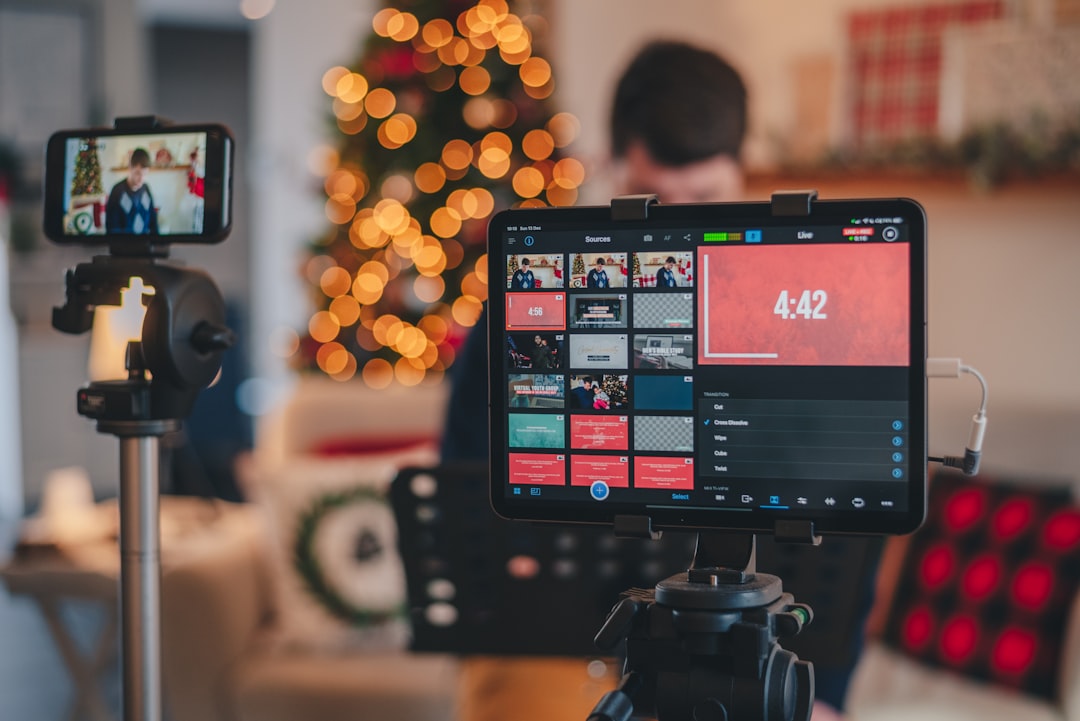
Stream keys and account permissions determine who can broadcast, change channel settings, access audience data, or connect tools to your channel. This guide provides a repeatable security workflow for Twitch, YouTube Live, and similar platforms, including how to locate or reset a stream key, manage team access, review connected apps, and respond to suspected exposure.
Overview
A stream key is the credential that allows broadcasting software such as OBS to send a live feed to a channel. Treat it like a password: do not publish it in screenshots, paste it into public chat, store it in shared documents, or send it through an unprotected message. Anyone who obtains an active key may be able to broadcast to the associated channel, depending on the platform and account controls.
Account permissions are broader than stream-key access. A team member, moderator, production partner, or connected application may be able to manage broadcasts, edit channel information, view analytics, moderate chat, or access other account features. The safest setup gives each person and tool only the access required for a defined task, for a defined period.
Platform names, dashboard locations, role levels, and authentication requirements can change. Use this article as a security process rather than a promise that every menu will look identical. When a label differs, look for sections such as Creator Dashboard, Live, Stream, Permissions, Security, Team, or Connected Apps.
For broader production risk planning, see the live event backup and failover plan and the streaming and video meeting integration playbook.
What to track
1. Stream-key ownership and status
Keep a private record of which encoder, computer, or production workflow uses each key. Avoid recording the key itself in the tracker. Instead, note the platform, channel, responsible owner, device or workflow name, last verification date, and whether the key should be reset after a staff or vendor change.
To locate a key, open the platform's official creator or live-streaming dashboard and look for stream settings. Some services show the key alongside the server or ingest URL; others require an additional confirmation before revealing it. Copy it directly into the streaming software's protected settings field. If the key is no longer visible, do not guess or reuse an old value—use the platform's option to reveal, create, or reset it.
2. Account and team access
Maintain a list of every person who can sign in, manage a broadcast, moderate the channel, or change settings. For each person, record:
- their named account or email address;
- the role or permission level assigned;
- the business reason for access;
- the date access was granted;
- the owner responsible for reviewing it; and
- the date access should be removed or reviewed.
Use named accounts and platform-supported team roles where available. Do not create a shared login simply because several people work on the same show. If a platform does not offer the role granularity you need, limit the number of people with the main account credentials and document who is authorized to use them.
3. Authentication and recovery controls
Track whether multi-factor authentication is enabled for the primary account and for every person with elevated access. Prefer an authenticator app or another strong method supported by the platform, and store recovery codes in a restricted password manager or other approved secure location. Confirm that recovery email addresses and phone numbers belong to the current account owner or organization, not a former employee or contractor.
4. Connected applications and integrations
Review applications that can access the channel, publish content, read account information, manage chat, or connect to streaming and automation tools. Record the application name, purpose, approving owner, scopes or permissions shown by the platform, and last review date. Remove integrations that are unused, duplicated, owned by a departed team member, or broader than the workflow requires.
Security is also part of technical streaming troubleshooting. If a broadcast suddenly fails after a credential change, check the encoder's saved key and connection settings before changing unrelated OBS settings. For performance symptoms such as dropped frames or an overloaded encoder, use the OBS encoder troubleshooting guide separately from the account-security review.
Cadence and checkpoints
A lightweight recurring review is more reliable than trying to reconstruct access after an incident. Use this schedule as a starting point and adjust it to the size and risk of the channel.
| Timing | Checkpoint | Action |
|---|---|---|
| Before each important broadcast | Correct channel, encoder, key, and account | Confirm the production operator is using the intended channel and that a test broadcast does not expose private information. |
| Monthly | Connected apps and active users | Remove unused integrations and investigate accounts that no longer need access. |
| Quarterly | Permissions and recovery details | Compare every role with current responsibilities; verify MFA and recovery contacts. |
| After staff or vendor changes | Former-user access and shared credentials | Remove access promptly, rotate shared secrets where applicable, and reset the stream key if exposure is possible. |
| After a suspected exposure | Credential containment | Stop or secure the broadcast, reset the stream key, revoke suspicious sessions or apps, change the account password, and review account activity. |
Keep the review record separate from the secret values. A useful audit log says what was checked and when without storing the stream key, password, MFA seed, or recovery codes in plain text.
How to interpret changes
Not every change indicates an attack. A new device, a platform redesign, an OBS update, or a team restructure can create legitimate changes. Interpret the change by asking four questions: What changed? Who requested it? Which permission or credential was affected? Can the change be verified through the platform's account activity or the responsible owner?
A stream-key reset should be treated as a workflow change, not merely a button click. Update the approved encoder immediately, test privately or with a limited audience where possible, and notify authorized operators through the team's normal secure channel. If the old key may have been exposed, assume it is no longer safe and avoid continuing to use it.
Unexpected broadcasts, unfamiliar connected apps, changed recovery details, new sign-ins, missing moderation controls, or an encoder that suddenly cannot publish warrant a faster response. First contain the issue: stop unauthorized broadcasting if possible, reset the stream key and password from a trusted device, enable or reconfigure MFA, revoke unknown sessions and applications, and preserve relevant timestamps or screenshots. Then check whether scheduled broadcasts, moderators, payment settings, channel information, or audience-facing links were altered.
Separate security symptoms from ordinary streaming problems. A black screen, missing microphone, buffering, or dropped frames does not automatically mean the account was compromised. Use a structured live stream quality troubleshooting decision tree for audio, video, and network diagnosis while keeping credential changes documented.
When to revisit
Review this process at least monthly for connected applications and quarterly for full permissions, authentication, and recovery details. Revisit it immediately after a team member leaves, a vendor changes, a new production computer is added, a streaming integration is installed, or a platform changes its creator dashboard.
During each review, assign one owner to complete these actions:
- Export or update the list of people, devices, and applications with access.
- Confirm every permission still matches a current responsibility.
- Remove former staff, inactive accounts, and unnecessary integrations.
- Verify MFA and recovery methods without recording their secret values.
- Check whether any stream key was shared, displayed, or stored incorrectly.
- Reset exposed or uncertain keys and update approved encoders.
- Record the review date, findings, actions, and next checkpoint.
When the platform changes its menus or role names, update your internal screenshots and instructions rather than relying on memory. A current permission register, a protected stream-key workflow, and a documented incident response give creators and production teams a practical baseline for safer Twitch, YouTube Live, and multi-platform streaming operations.