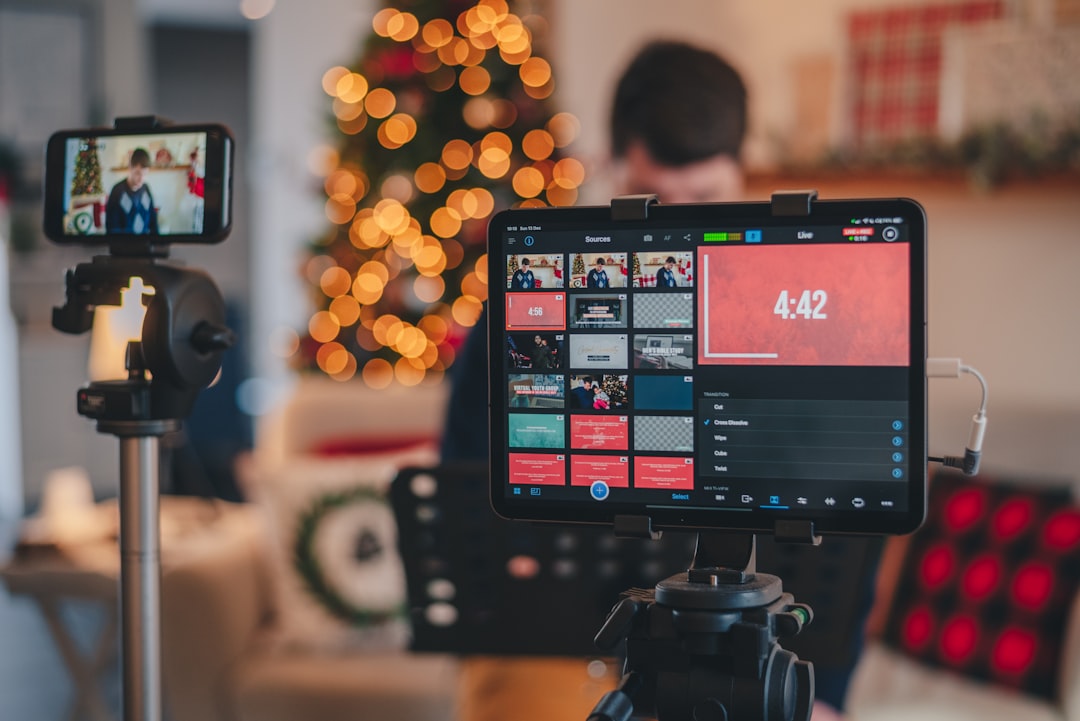
Will your camera, capture card, microphone, or audio interface work with OBS? This compatibility checklist helps you verify connections, drivers, operating-system support, resolution limits, audio routing, passthrough, and platform requirements before you buy equipment or go live.
Overview
OBS can work with a wide range of webcams, mirrorless cameras, capture cards, USB microphones, mixers, and audio interfaces. Compatibility is not determined by the device name alone, however. The complete setup includes the device, its connection type, drivers, operating system, cables, OBS source settings, available computer resources, and the streaming or meeting platform receiving the output.
A device may appear to be compatible and still create problems. A camera might provide video through USB but not expose every resolution or frame-rate option. A capture card may accept a high-resolution signal but pass only a lower format to OBS. An audio interface may work in a recording application while its input is muted, routed to the wrong channel, or unavailable to another application. These are usually configuration constraints rather than total incompatibility.
Use this guide before purchasing equipment, moving to a new computer, updating device firmware, adding a guest, or diagnosing a new problem. For a complete production review, pair it with the live stream quality troubleshooting decision tree and the live streaming troubleshooting checklist.
A simple compatibility model
- Physical connection: Confirm the connector, cable, adapter, power requirement, and available port.
- System recognition: Check whether the operating system detects the device and whether a driver or utility is required.
- OBS access: Verify that OBS can select the device as a video capture device, audio input, or other appropriate source.
- Format support: Match resolution, frame rate, color format, sample rate, and channel configuration across the device and OBS.
- Platform delivery: Confirm that the final OBS output fits the requirements and practical limits of the destination platform.
Checklist by scenario
USB camera or webcam
- Confirm the camera is listed by the operating system before opening OBS.
- Use a direct connection for the first test rather than an unpowered hub or a chain of adapters.
- Check whether the camera supports the resolution and frame rate you plan to use at the same time. Some modes are mutually exclusive.
- Close other applications that may already be using the camera. A camera can be visible to the computer but unavailable to OBS if another application has claimed it.
- In OBS, add the device as a Video Capture Device and test both automatic and manual format settings.
- Check exposure, white balance, focus, and power behavior. A technically compatible camera can still produce an unstable or poor-looking image.
If the camera works in a meeting application but not in OBS, compare the selected device name, permissions, resolution, and frame rate. Do not assume that a successful test in Zoom, Teams, or another application confirms every OBS mode.
Mirrorless, DSLR, or camcorder through a capture card
- Confirm that the camera provides a clean output suitable for capture. Menus, focus boxes, battery warnings, or sleep screens can appear in the feed if the camera is not configured for output.
- Check the camera's output resolution and frame rate against the capture card's supported input modes.
- Verify the correct cable and connector direction. HDMI sizes and cable capabilities vary, and an adapter does not automatically improve the signal.
- Check whether the camera needs external power for a long session and whether it enters an automatic sleep mode.
- Connect the capture card, allow the operating system to recognize it, then add it to OBS as a video capture device.
- Test audio separately. HDMI audio may be embedded in the capture signal, disabled on the camera, delayed, or routed differently from a microphone connected directly to the computer.
Some capture cards also offer passthrough. Treat the passthrough display and the OBS feed as separate checks: a monitor may show a signal even when the computer or OBS is receiving a different format.
USB microphone
- Confirm that the microphone appears as an input device and is selected in OBS, not only in the operating system's default audio settings.
- Check mute controls on the microphone, inline controls, and any hardware gain setting.
- Set a consistent sample rate where possible. Mismatched audio settings can cause glitches, silence, or drift.
- Monitor the microphone in OBS and listen for clipping, excessive background noise, delay, or a second unintended microphone.
- Keep the microphone close enough for a healthy signal so that software gain does not need to be excessive.
If your mic is not working on stream, test it in the operating system first, then in OBS, and finally in the platform receiving the stream. This isolates a device problem from an OBS routing problem.
Audio interface, mixer, or XLR microphone
- Confirm the interface is powered and that the input channel has signal.
- Check phantom-power requirements only when applicable to the microphone and follow the hardware manufacturer's instructions.
- Verify that the correct input channel is selected in the interface utility and in OBS.
- Decide where monitoring will occur: through the interface, OBS, or another application. Monitoring in more than one place can create an echo.
- Test headphones connected to the intended monitoring point and compare direct monitoring with OBS monitoring.
- For multiple speakers or guests, document each channel and mute state before the rehearsal.
Audio interfaces are often compatible with OBS as standard system audio devices, but advanced routing may depend on the interface utility or operating-system audio configuration. Keep the first setup simple before adding virtual devices, software mixers, or conferencing applications.
Streaming to a platform or meeting application
- Confirm that OBS can produce the chosen canvas and output resolution without overloading the computer.
- Match the stream's video frame rate and audio sample rate to the rest of the workflow where practical.
- Check whether the destination receives the OBS program output, a virtual camera, a virtual microphone, or a direct application feed.
- Test permissions, account access, and the correct destination before the event. For stream-key security, use the stream key and account permissions security guide.
- Run a private or unlisted test when the platform supports it, then review the result on a separate device.
What to double-check
Operating-system support and drivers
Record the operating system version, OBS version, device model, firmware version, and driver or utility version for each production computer. Check the device manufacturer's documentation before a major operating-system update or firmware change. If a device requires a proprietary utility, install only the components needed for the workflow and confirm that the utility does not change gain, routing, or camera settings unexpectedly.
Resolution, frame rate, and bandwidth
Choose a target format first, such as a standard HD workflow at a consistent frame rate, then verify every link in the chain. The camera output, capture card input, capture card output, OBS source, OBS canvas, OBS output, and destination platform should not be treated as interchangeable. If a device cannot provide the desired mode, select a supported mode rather than forcing an unstable conversion.
For network and encoder symptoms, consult the OBS encoder overloaded and dropped frames guide. Hardware compatibility does not guarantee that the computer can encode, record, preview, and transmit the signal comfortably at the same time.
Audio routing and synchronization
Draw a short signal map: microphone or camera audio to interface or capture card, then to OBS, then to the destination. Mark where monitoring occurs and where delay is introduced. Listen for doubled audio, lip-sync drift, one-sided audio, and a missing channel. When OBS combines separate video and audio devices, a small synchronization adjustment may be necessary.
Passthrough and adapters
List every adapter, hub, extension, and converter in the chain. Each additional component is another possible power, bandwidth, format, or driver constraint. Test the system with the shortest practical connection first. If passthrough is important for a presenter or confidence monitor, test it under the same resolution and frame-rate settings used during the event.
Common mistakes
- Buying by connector alone: A USB, HDMI, or XLR label does not describe every supported mode or required driver.
- Testing only one application: A camera that works in a meeting app may use different permissions or formats than OBS.
- Adding every device at once: Build and test the camera, capture card, and audio path separately before combining them.
- Ignoring power and sleep settings: Cameras, hubs, and interfaces can disconnect or enter standby during long events.
- Leaving automatic settings unverified: Auto exposure, gain, focus, or audio routing can change during a live session.
- Monitoring twice: Direct hardware monitoring plus software monitoring commonly produces an echo or delay.
- Skipping a recorded test: A preview can look acceptable while the recording reveals clipped audio, dropped frames, or incorrect cropping.
- Changing firmware immediately before going live: Updates can be useful, but they should be tested in the complete workflow first.
For events involving guests, moderators, or several applications, use a documented rehearsal. The streaming and video meeting integration playbook can help map OBS to Zoom, Teams, Discord, and YouTube Live.
When to revisit
Revisit this compatibility checklist before each major production change and at least once during a regular equipment review. Update it when you buy or replace a camera, capture card, microphone, interface, cable, hub, or computer; change operating systems; install a new OBS version; update device firmware or drivers; add a virtual camera or audio device; change resolution or frame rate; or move from a personal stream to a webinar or multi-person event.
Also review the setup after an unexplained failure. Record what changed, preserve the last known-good OBS profile, and test one variable at a time. Keep a small inventory containing device names, connection types, supported formats, driver links, power requirements, and known constraints. Rehearse the complete path before seasonal planning cycles or important broadcasts, and maintain a fallback such as a tested webcam, alternate microphone, local recording, or backup connection. For broader event resilience, see the live event backup and failover plan.
Action plan: choose your target video and audio format, map every device in the signal chain, verify recognition in the operating system, test each source in OBS, record a short sample, review the result on another device, and document the settings that worked. That process turns “Will this work?” into a repeatable compatibility check.